

Logging in with Single Sign-On
If you initially set up your account using a Single Sign-On method (via Google, Facebook, or Apple), click the SSO option that applies to you and follow their steps to log in.
Logging in with Email or Username
- Enter the email or username associated with your Bublup account and tap “continue”.
- If you know your password, enter your Bublup password and tap “Log In”.
- If you don’t remember your password, you can select “Log in with a one-time link”.
- Check your inbox for an email from us with the subject line “Bublup login link”.
- Open the email and tap the provided “Log in” link.
- Alternatively, you can select “use a code instead” and enter the code provided in your email.
Note: If you have two-factor authentication enabled and your primary email address is set as your authentication method, then the “log in with a one-time link” method will not be allowed.
Changing Your Password
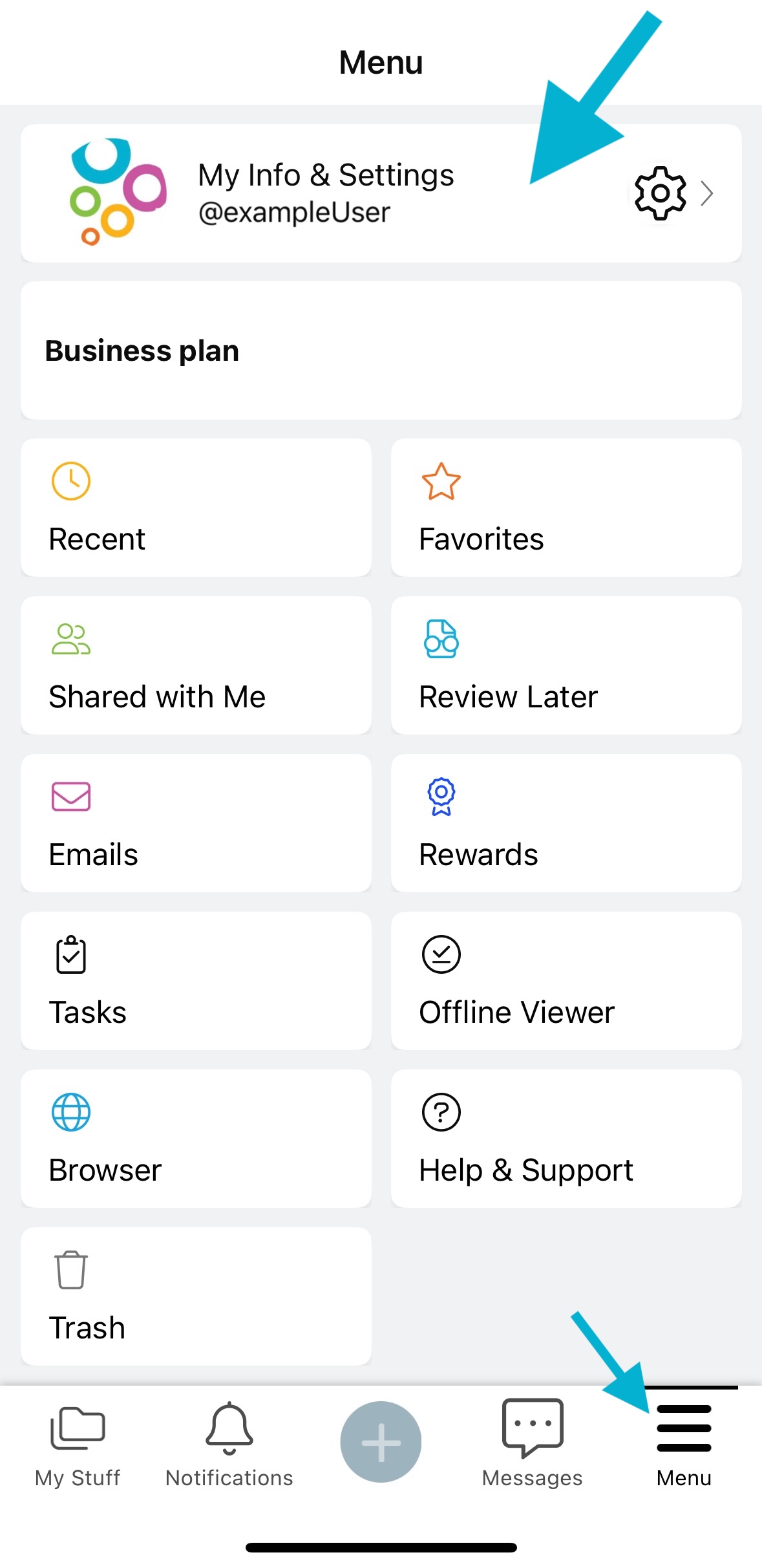
1. Tap on ☰menu and select “My Info & Settings”.
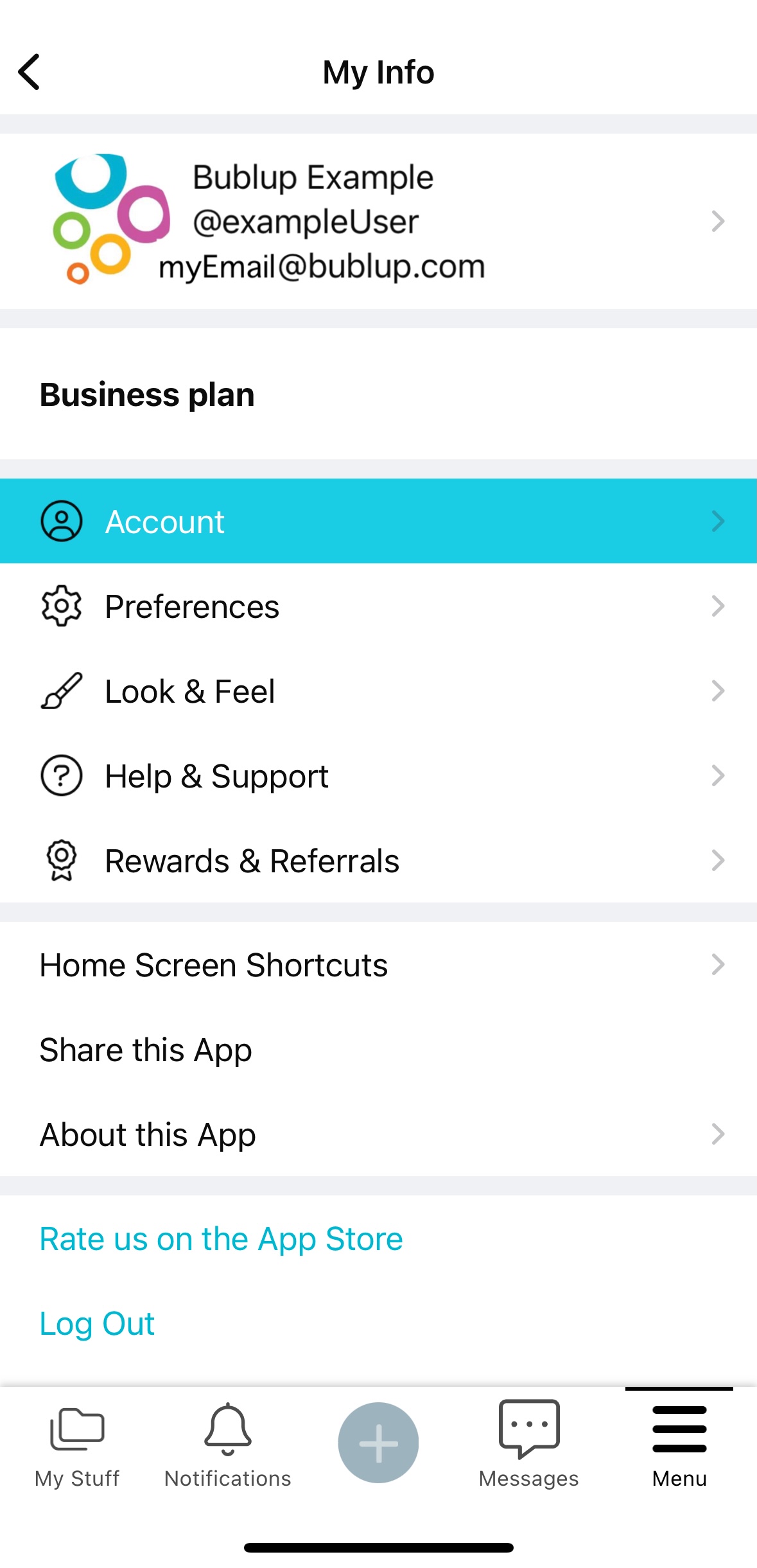
2. Tap on “Account” and then on “Change Password”.
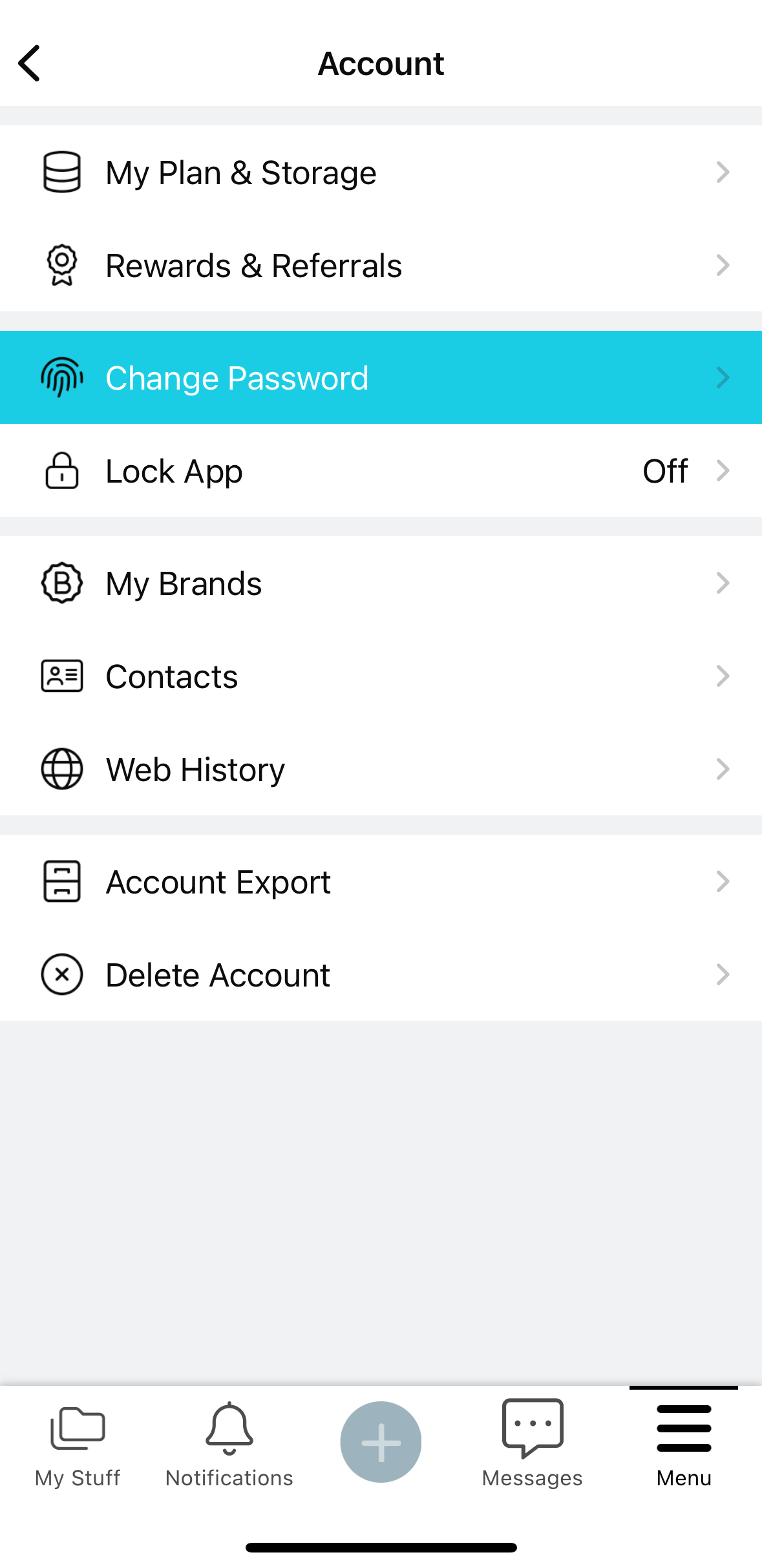
Note: If you have forgotten your password, you can reset it by tapping the “Forgot password” link.
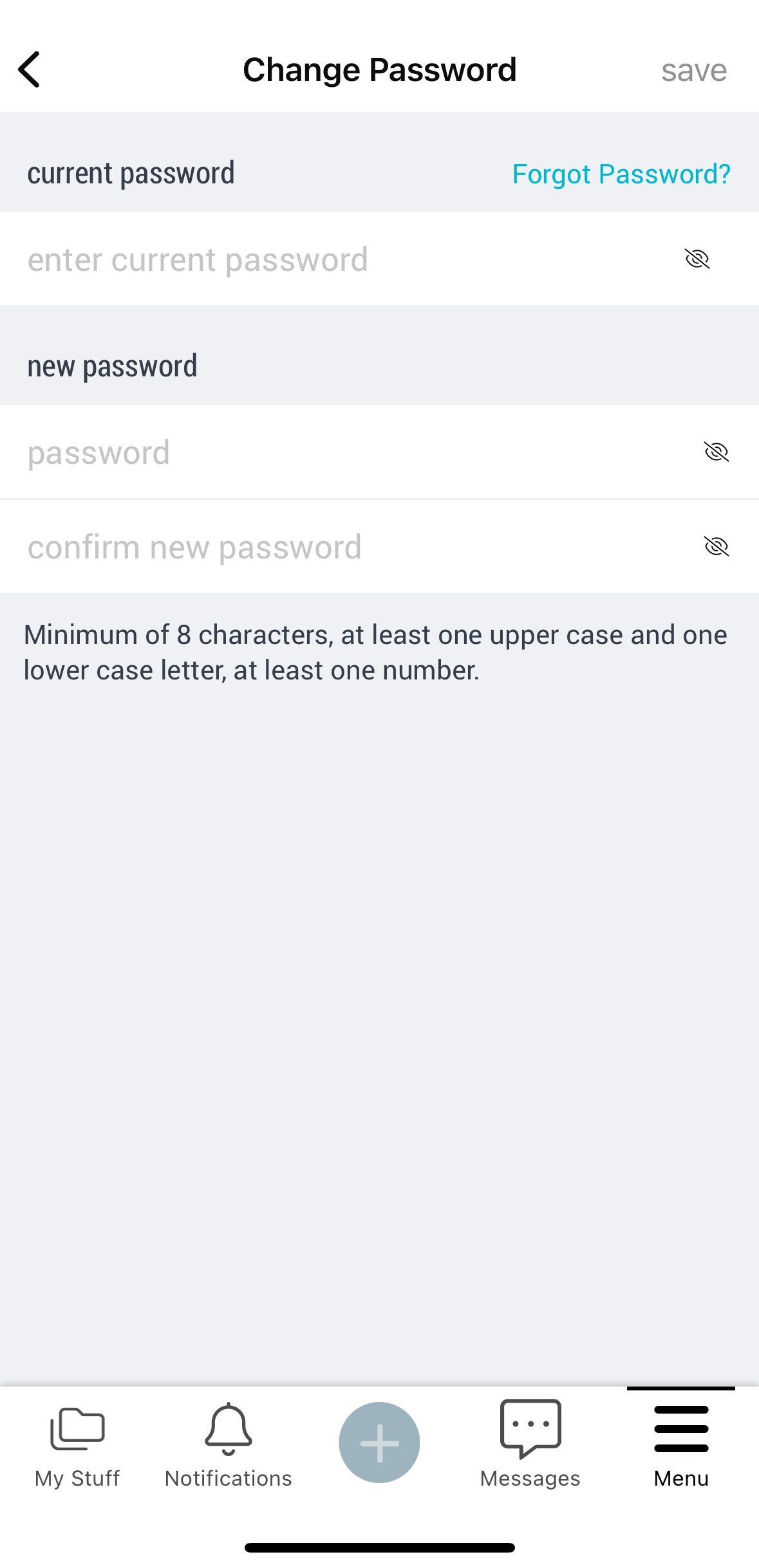
Password Setting Best Practices
If you have set a Bublup account password, make sure that it’s long and has a variety of letters, numbers, and symbols. Do not reuse this password on other sites. Ensure that the password for securing your email is also secure and not reused on other sites.
Logging in with Single Sign-On
If you initially set up your account using a Single Sign-On method (via Google, Facebook, or Apple), click the SSO option that applies to you and follow their steps to log in.
Logging in with Email or Username
- Enter the email or username associated with your Bublup account and click “continue”.
- If you know your password, enter your Bublup password and click “Log In”.
- If you don’t remember your password, you can select “Log in with a one-time link”.
- Check your inbox for an email from us with the subject line “Bublup login link”.
- Open the email and click the provided “Log in” link.
- Alternatively, you can select “use a code instead” and enter the code provided in your email.
Note: If you have two-factor authentication enabled and your primary email address is set as your authentication method, then the “log in with a one-time link” method will not be allowed.
Changing Your Password
1. Click on “my info” in the upper-right corner of the app.
2.Click on “Change Password” under “Account Information”.
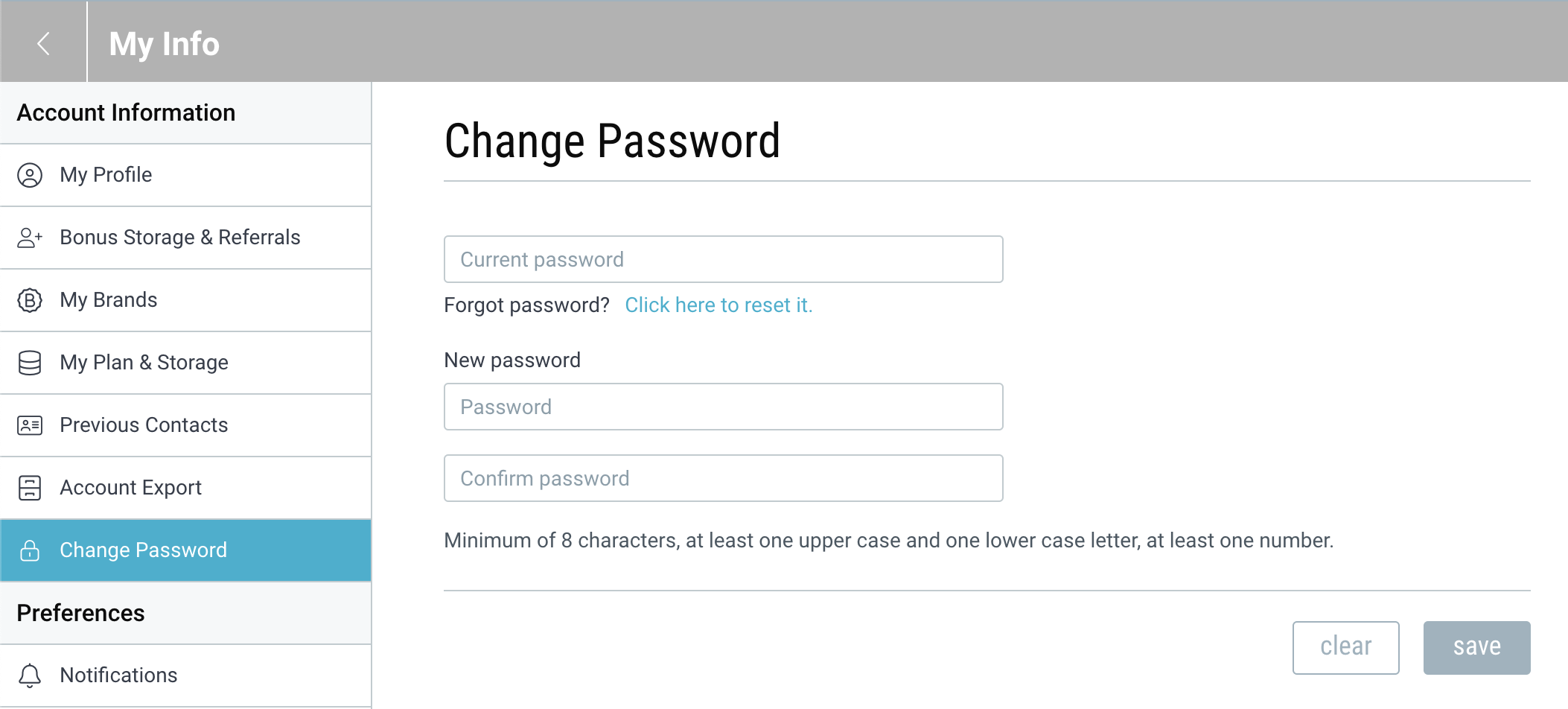
Note: If you have forgotten your password, you can reset it by clicking the link next to “Forgot password”.
Password Setting Best Practices
If you have set a Bublup account password, make sure that it’s long and has a variety of letters, numbers, and symbols. Do not reuse this password on other sites. Ensure that the password for securing your email is also secure and not reused on other sites.